
Manage Talk Access Profiles
Talk organizational admins control Talk user permissions for 1:1 chat and broadcast chat messaging by creating access profiles and assigning them to users on the Profiles page of the Talk Admin Dashboard.
Access profile permissions are based on Function Access Profile (FAP) assignments. Admins assign each profile the standard/default attribute called Function Access Profile, which is synchronized with UKG Pro WFM. This allows Talk admins to manage and regulate a user's chat interactions within the organization by establishing rules for who can communicate with whom.
For example, if the Payroll Manager FAP is assigned to a profile, all Talk users assigned the Payroll Manager FAP will be automatically assigned the profile and its permissions.
From the Profiles page in the Talk Admin Dashboard you:
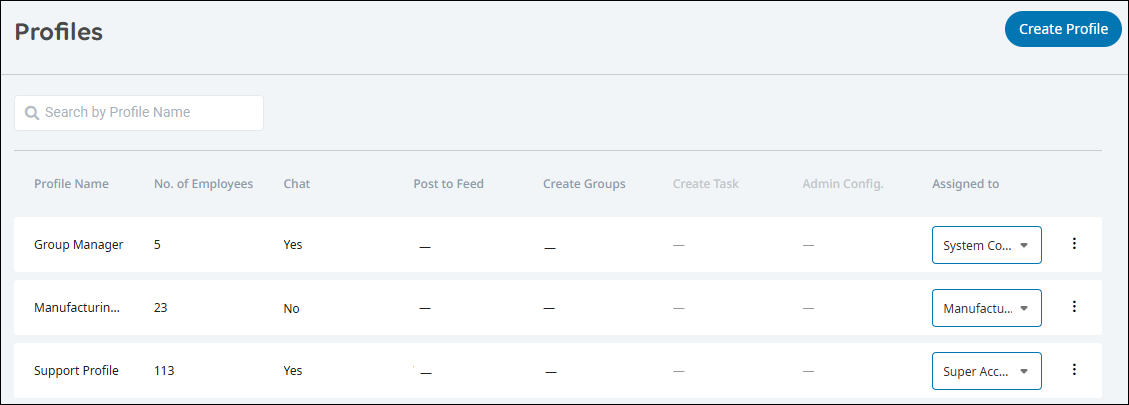
- View a list of access profiles and see how many employees are associated with a profile, its assigned FAP if any, and whether the profile currently allows permission to chat
- Create a new profile
- Search for specific profiles
- Add or change a profile assignment
- View or edit the profile details
- Delete a profile Note: Currently, only Chat is managed with access profiles. Other functions will be available at a later time.
To create profiles, see To create access profiles.
There are three categories of access profile permissions:
- All. Users can chat with any Talk users on the current tenant
- Groups. Users can interact with others who are members of the same groups.
- Attribute. Enabled for users who share the values of a specified attribute.
Guidelines
Note the following:
- If the FAP or attribute values change in UKG Pro WFM, the changes will be reflected in Talk after the next sync. If a FAP is renamed or deleted in UKG Pro WFM, then the profile assignment is removed and any users linked to the profile will be disconnected until the profile is assigned another FAP.
- By default, profile permissions are disabled. Any roles or settings already in place remain in place until you enable permissions for that function.
- Profiles can only be assigned to one FAP at a time. When you assign a FAP to a profile, that FAP is unavailable for other profiles. If you select a different FAP for a profile, then the FAP is again available for assignment.
- A user that was never granted chat access from the Settings page cannot start 1:1 chats, will not show up in user search results, and will be unable to search chats. If they are messaged directly, they will see it and be able to respond.
- When chat is disabled for a user who previously had chat permissions:
-
They cannot start 1:1 chats.
-
They continue to see their 1:1 conversations started by others.
-
They continue to have access to their chat groups and to continue chatting in those groups.
-
To create access profiles
- In the Talk Admin Dashboard, go to the Profiles page. A list of profiles displays. Each profile shows the permissions currently allowed, if any. If the profile is assigned a FAP, then the number of users assigned the profile and the name of the FAP display.
- Click Create Profile. The Create Profile page opens.
- Enter a unique Profile Name.Note: If you enter a duplicate name, you will be alerted when you click Save and must enter a unique name.
- (Optional) Enter a short Description.
- Under Permissions for Chat click the Allowed drop-down list and select either No or Yes. By default, neither option is selected and it shows a dash (-).
Note the following:
-
Chat will be unavailable when the Disable Chat option in the Content and Collaboration section on the Settings page is selected. This setting is global and overrides the access profile.
-
- If you selected Yes, do the following:
- Click Save. The new profile displays on the Profiles page. By default, the profile is not assigned a FAP.
To assign/reassign a FAP to a profile
After you create a profile, assign it to a FAP to associate it with users that share the same synchronized values. A FAP is assigned to one profile at a time and only one FAP can be assigned to a profile.
- Go to the Profiles page and search for the profile to assign.
- Click the Assigned to drop-down list for the profile and select a FAP. The number of employees linked to the FAP updates. You can change the FAP selection at any time.
To view, edit, and delete access profiles
You can view and edit profile details at any time. You can also delete a profile if it is no longer valid. When you delete a profile, permissions for any associated users are removed.
- Go to the Profiles page and search for a profile.
- Click the profile's
more menu
and select the following as needed: - View Profile. Opens a read-only view of the profile details.
- Edit Profile. Opens the profile for editing.
- Delete Profile. A confirmation message opens. Click Yes, Delete. The profile is removed from the list and users will no longer have these permissions.