Employee sign-off report
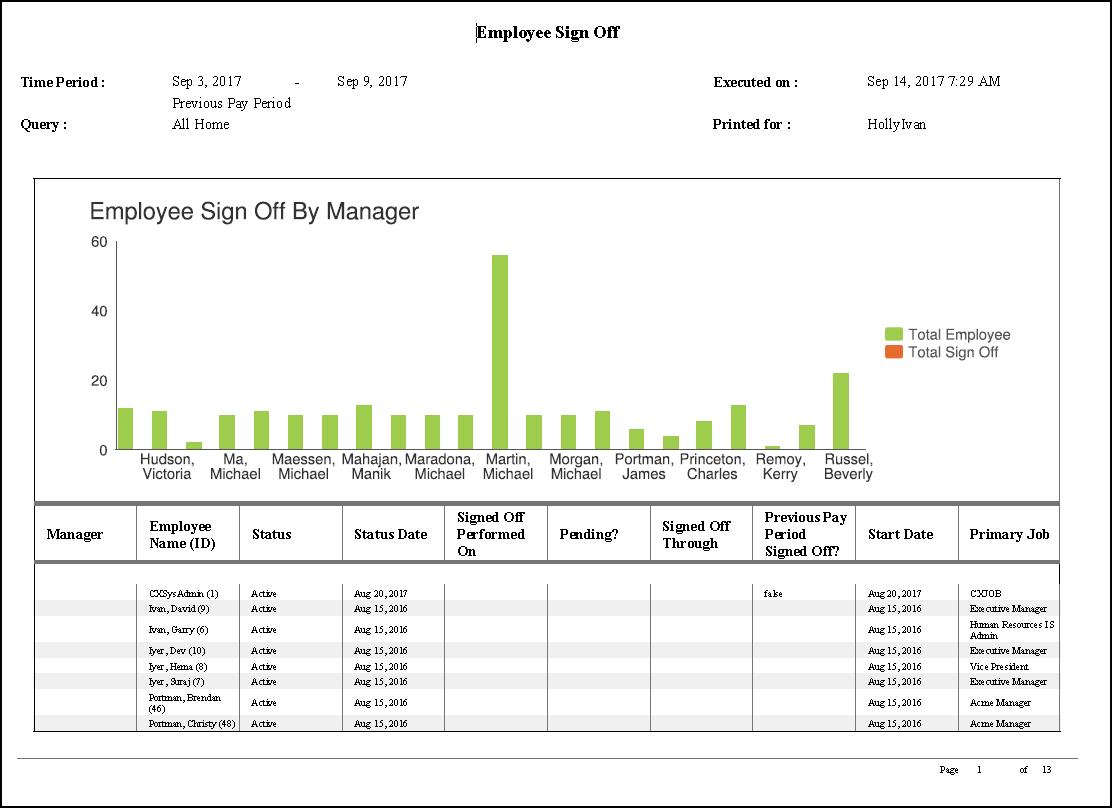
The Employee Sign-Off report displays employee data that indicates if and when a manager has signed off an employee's timecard for a previous pay period. The manager's name (if it has been defined) also appears in the display.
Run the report
-
From your Report Library,
click tap
Run Report
- In the Select Report panel, select and click tap Select.
-
From the report panel, select the parameters:
-
Click Tap
Select Timeframe
. Then, in the Timeframe panel, select the appropriate timeframe or click tap Select Range to select a range of dates. When finished, click tap . -
Click Tap
Select Hyperfind
. Then, in the Locations & Hyperfinds panel, select the appropriate location or Hyperfind. If you have the appropriate access, you can also do the following: Click Tap New Hyperfind to create a new Hyperfind. See Hyperfind queries for more information.
Click Tap Select Locations to open the Select locations glancepanel.
When finished, click tap
. -
Show chart— Select to include a bar chart that compares the employees to the employees signed off.
-
Output Format— Select one of the following:
- Excel
- Interactive
- CSV output
-
Click Tap
Select Timeframe
- Click Tap Run report. An In progress message displays while the report is running.
-
Click
Close
to close the panel. - Click OK when the Report is Completed message appears. If you created a PDF or Excel report, a link appears at the bottom of the Report Library. If you created an interactive report, the report opens in a new tab automatically. The report opens in a new window.
Report contents
The report contains the following columns:
- Manager— Manager's name
- Employee Name (ID)— Last name, first name with the employee's ID
- Status— Indicates the current status of the employe: Active, Inactive, or Terminated
- Status Date— The date that the employee's current status became effective
- Signed Off Performed On— The date and time that the employee's timecard was last signed off. If the signoff is pending, the date and time that the signoff became pending is displayed. If the employee has never been signed off, this is blank.
- Pending?— If the signoff is pending, a P appears here.
- Signed Off Through— The last date for which the employee is signed off. This is usually the last day of the signed off pay period
- Previous Period Signed Off?— Yes or No. Indicates whether the employee's timecard from the previous pay period is signed-off.
- Start Date— Employee's hire date
- Primary Job— The primary jobs and/or primary labor categories assigned to the employee
If applicable, the total number of employees who are not totalized also appears as well as the employee's name (last, first) and ID.